How to rewrite an email to sound professional, friendly or concise
Quick answer
Select your draft, press the hotkey and choose Professional, Friendly or Concise. AI Shortcuts rewrites the same message in that tone and keeps your meaning.
Step by step
- 1
Select the draft
Highlight the text in your mail app, a ticket, Slack or any text box.
- 2
Pick the tone
Choose Professional for formal work messages, Friendly for a warm tone or Concise to cut words.
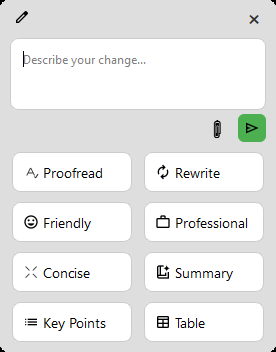
Pick the tone - 3
Review and copy
Read the result, copy the version you like, or ask a follow-up such as “make it shorter” in the response window.
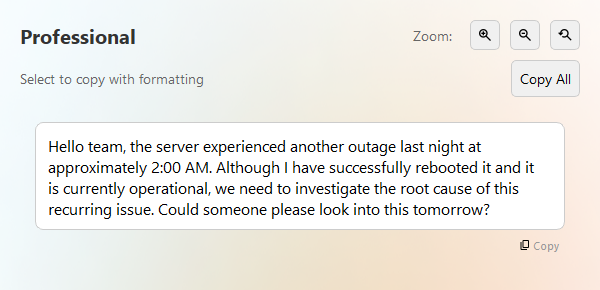
Copy the rewritten message
Real example
hey team, the server went down again last night around 2am. i restarted it and its fine now but we really gotta figure out why this keeps happening. can someone look into it tmrw?
AI response, Professional (first option, Gemini)
Hello team, the server experienced another outage last night at approximately 2:00 AM. Although I have successfully rebooted it and it is currently operational, we need to investigate the root cause of this recurring issue. Could someone please look into this tomorrow?
Tips
- The model may offer several versions, from standard to very formal. Pick the one that fits your relationship with the reader.
- Use Concise for long updates nobody will read, and Friendly for customer or community replies.
- Need a tone that is not built in? Create your own command, for example “Polite but firm”. See the custom commands guide.
FAQ
Will the AI change what I mean?
It aims to keep your meaning, but always read the result before sending. You stay in control of what you copy.
Does it work for languages other than English?
Yes. Models such as Gemini handle many languages, including Vietnamese.
Can I choose a different model for this command?
Yes. Each command can use its own AI provider and model in the command settings.
Download AI Shortcuts
Free and open source for Windows, macOS and Linux.