How to create custom AI commands for your daily tasks
Open Settings → Commands → Add New…, give the command a name, write a system prompt that says how the AI should behave, and optionally set a keyboard shortcut. Your command then appears in the popup like the built-in ones.
Step by step
- 1
Open the Command Manager
Open Settings → Commands and click Add New…
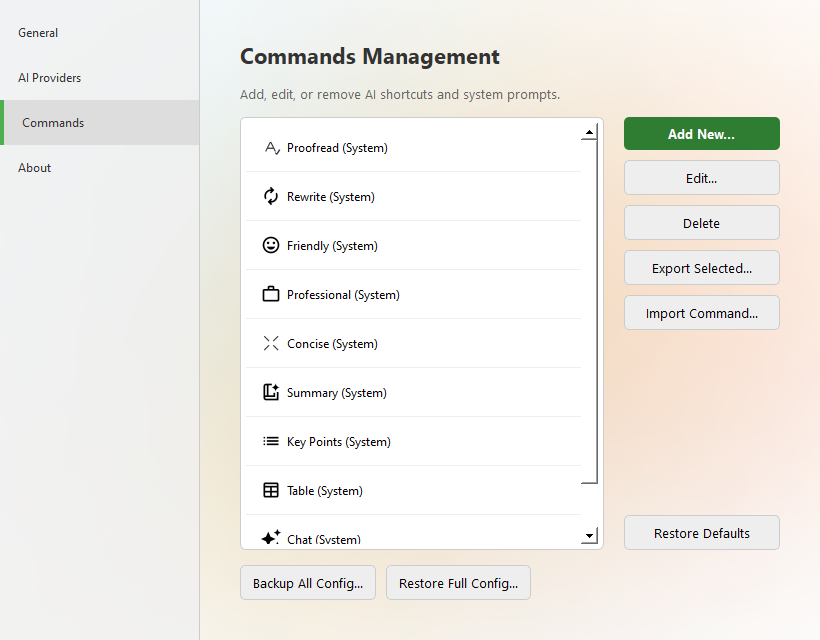
Settings → Commands → Add New… - 2
Name it and write the prompt
Fill Command Name and System Prompt / Instruction. Describe the output you want and say “output only the result”.
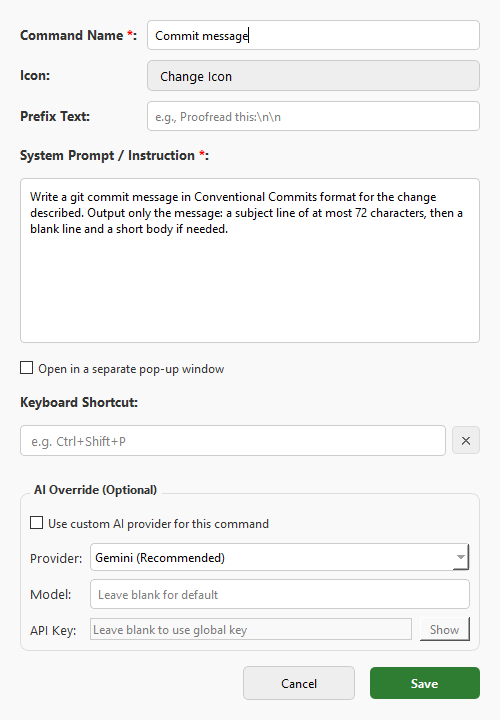
Name the command and write the prompt - 3
Optional settings
Set a Keyboard Shortcut, an icon, or an AI override (a different provider or model just for this command). Untick “Open in a separate pop-up window” to replace the selected text directly.
- 4
Use it
Select text, press the hotkey and run your new command. Export your commands to back them up or share them.
Example 1: commit message
System prompt:
Write a git commit message in Conventional Commits format for the change described. Output only the message: a subject line of at most 72 characters, then a blank line and a short body if needed.
fixed bug where the settings window crashed when the user had no api key saved, now it shows an empty field instead. also added a unit test for it
fix(settings): prevent crash when no API key is saved

Handle missing API key by displaying an empty field instead of crashing.
Added a unit test to verify the fix.
Example 2: customer support reply
System prompt:
Write a polite, concise customer support reply in the same language as the customer's message. Acknowledge the problem and state the next step. Output only the reply.
Chào shop, mình đặt đơn hàng cách đây 5 ngày mà vẫn chưa nhận được, mã đơn 12345. Mình cần gấp, shop kiểm tra giúp mình với.
Chào bạn, shop rất xin lỗi vì sự chậm trễ này đã làm ảnh hưởng đến công việc của bạn. Shop sẽ lập tức kiểm tra tình trạng đơn hàng 12345 với bên vận chuyển và sẽ liên hệ lại với bạn trong thời gian sớm nhất nhé.
Tips
- A good prompt states the role, the output format and what to avoid. Short and specific works best.
- Give each command its own shortcut for the tasks you repeat all day.
- Use the AI override to send private commands to a local model and the rest to a cloud model.
FAQ
How many commands can I create?
There is no fixed limit. You can reorder, edit, export and import them.
Can I share my commands?
Yes. Export them as a file and import the file on another computer.
Do custom commands work with every provider?
Yes. They use the default provider unless you set an override for the command.
Download AI Shortcuts
Free and open source for Windows, macOS and Linux.