How to use Ollama for private, offline AI writing help
Install Ollama, download a model, then set the Ollama provider in AI Shortcuts to http://localhost:11434 with your model name. Your text stays on your computer and no API key is needed.
Step by step
- 1
Install Ollama
Download Ollama from ollama.com and install it. It runs a local server on port 11434.
- 2
Download a model
In a terminal run: ollama pull llama3.1:8b (or another model that fits your RAM).
- 3
Set up the provider
Open AI Shortcuts → Settings → AI Providers, choose Ollama (For Experts), set API Base URL to http://localhost:11434 and API Model to llama3.1:8b.
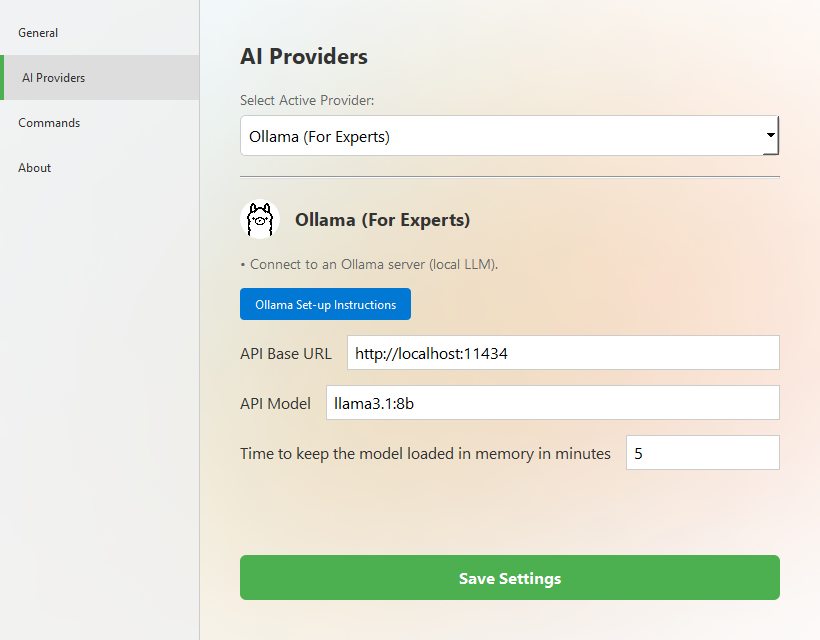
Settings → AI Providers → Ollama - 4
Try a command
Select some text, press the hotkey and run Proofread. The request goes to your own machine.
ollama pull llama3.1:8b
ollama run llama3.1:8b "hello"   # quick test
Tips
- Smaller models run on modest hardware but write less well. Try a larger model if your computer has enough memory.
- The setting “Time to keep the model loaded in memory in minutes” controls how long Ollama keeps the model ready between requests.
- You can mix providers: use Ollama for private text and a cloud model for harder tasks by setting a provider per command.
FAQ
Do I need an internet connection?
Only to download Ollama and the model. After that, AI Shortcuts with Ollama works offline.
Does it cost anything?
No. Ollama and open models are free. You use your own computer’s resources.
Can I use LM Studio or llama.cpp instead?
Yes. Use the OpenAI Compatible provider and point its base URL at the local server.
Download AI Shortcuts
Free and open source for Windows, macOS and Linux.