How to set up a free AI writing assistant with Google Gemini
Create a free API key in Google AI Studio, paste it into Settings → AI Providers → Gemini in AI Shortcuts, and choose a model. You can then proofread, rewrite and summarize text in any app on the free tier.
Step by step
- 1
Get an API key
Open aistudio.google.com/app/apikey, sign in with a Google account and create an API key.
- 2
Open the settings
In AI Shortcuts open Settings → AI Providers and choose Gemini.
- 3
Paste the key and pick a model
Paste the key into API Key. Pick a model from the list or enter your own. Save the settings.
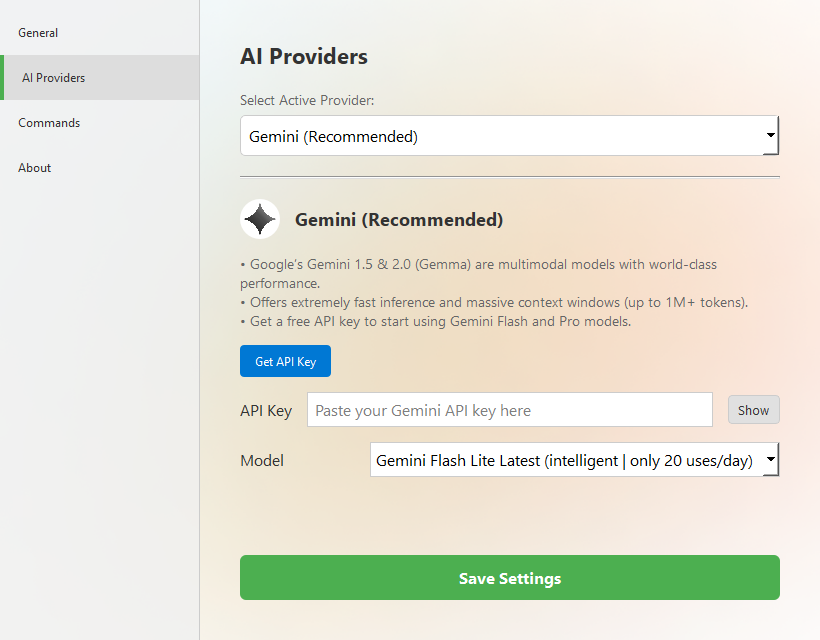
Settings → AI Providers → Gemini - 4
Test it
Select text in any app, press the hotkey and run Proofread.
Tips
- Keep your key private. On Windows and Linux, AI Shortcuts saves it in its settings file with light obfuscation, which is not encryption, so anyone who can read your user profile can recover it. On macOS it is kept in the Keychain. Never share the file or commit the key to a repository.
- Free-tier limits and available models change over time. If a model stops working, pick another one in the model list.
- For quick everyday edits a small, fast model is enough. Use a larger model for long or difficult text.
FAQ
Is Gemini really free?
Google offers a free tier with rate limits. Check Google’s current terms and quotas for details.
Where is my API key stored?
On Windows and Linux, in the app’s settings file in your user profile (%APPDATA%\AIShortcuts or ~/.config/aishortcuts), lightly obfuscated and not encrypted. Keys you set per command use the OS keyring when available. On macOS the Keychain is used.
What if I hit the rate limit?
Wait a moment, switch to another model, or use a local model through Ollama.
Download AI Shortcuts
Free and open source for Windows, macOS and Linux.